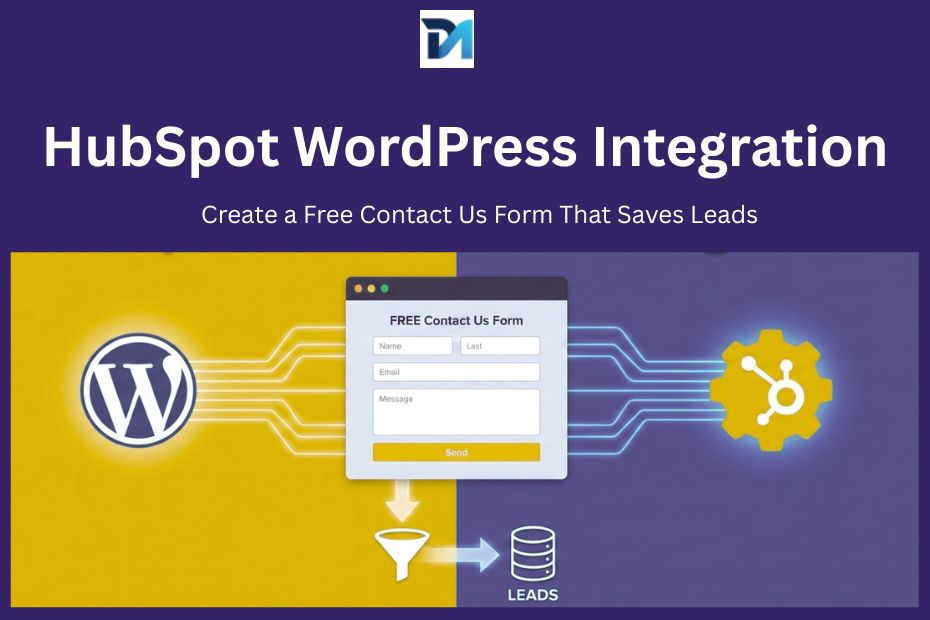
If you’re running a WordPress website, chances are you already have a Contact Us form live.
And if you’re being honest, it probably just sends an email.
At first, that feels enough. But over time, real problems start showing up:
- Leads go missing
- Enquiries get buried in inboxes
- Team members forget to follow up
- There’s no clear record of who contacted you and when
This is not a plugin issue.
It’s a lead management problem.
The good news? You can fix this using HubSpot’s free CRM integrated with WordPress, without paying for premium plugins or writing custom code.
Let’s walk through a clean, real-world setup that actually works.
Why Most WordPress Contact Forms Fail at Scale
Traditional WordPress contact form plugins are designed to do one thing:
👉 send an email.
They don’t:
- Store leads in a CRM
- Track lead history
- Show previous conversations
- Give visibility to your team
As soon as your business grows beyond one inbox, this setup starts breaking.
That’s where HubSpot’s free CRM + WordPress integration makes sense.
Why HubSpot Is a Smart Choice (Even on the Free Plan)
Many people assume HubSpot is expensive or “too big” for small websites.
In reality, the free plan gives you:
- A full CRM
- Unlimited contact storage
- Contact forms
- Email notifications
- Basic visitor tracking
And it integrates natively with WordPress.
No hacks. No third-party sync tools.
What You Need Before You Start
Keep it simple:
- A WordPress website (self-hosted)
- Admin access to WordPress
- A free HubSpot account
That’s all.
Step 1: Install the Official HubSpot Plugin on WordPress
Inside your WordPress admin panel:
- Go to Plugins → Add New
- Search for “HubSpot”
- Install the official plugin by HubSpot
- Activate it
This plugin handles:
- CRM connection
- Form embedding
- Visitor tracking
- Cookie management
No API keys required.
Step 2: Connect WordPress With Your HubSpot Account
After activation:
- Click HubSpot in the WordPress sidebar
- Sign in to your HubSpot account
- Authorize the connection
Once connected, your WordPress site and HubSpot CRM start talking to each other.
At this point, HubSpot can already track visitors — even before they submit a form.
Step 3: Create a Free Contact Us Form in HubSpot
Inside HubSpot:
- Go to Marketing → Forms
- Click Create form
- Choose Embedded form
- Start with a blank template
Add only essential fields:
- First name
- Email address (required)
- Message
- Phone number (optional)
Real-world tip:
Every extra required field reduces form submissions.
Step 4: Configure Form Settings Correctly (Important)
Inside the form options:
- Enable “Always create contact for new email address”
- Turn on pre-fill known fields
- Choose a clear thank-you message or redirect to a thank-you page
These small settings prevent duplicate contacts and improve user experience.
Step 5: Set Up Email Notifications (Still Free)
You don’t need automation or workflows.
Just:
- Go to Form options → Notifications
- Add team email IDs
- Enable instant alerts
Now every submission:
- Creates a CRM contact
- Sends an internal notification
- Doesn’t rely on one inbox
Step 6: Embed the HubSpot Contact Form in WordPress
You have two clean options:
Option 1: HubSpot Block (Recommended)
- Edit your Contact Us page
- Add a HubSpot Form block
- Select your form from the list
Option 2: Embed Code
- Copy the embed code from HubSpot
- Paste it into an HTML block or page builder section
Both methods are lightweight and performance-friendly.
Step 7: Test Like a Real User (Don’t Skip This)
Before going live:
- Submit the form yourself
- Check if the contact appears in HubSpot CRM
- Confirm email notifications
- Try submitting the form again with the same email
This ensures your setup is reliable.
What Happens After Someone Submits the Form?
Behind the scenes:
- A contact is created in HubSpot CRM
- Submission source is recorded
- Page views are tracked
- Lead history is stored
You’re no longer dealing with “just emails.”
You’re managing actual leads.
Common Mistakes to Avoid
- Using multiple form plugins with HubSpot
- Making too many fields mandatory
- Not setting a thank-you page
- Forgetting to test submissions
- Treating CRM as optional
These mistakes undo the benefits of integration.
Who This Setup Is Perfect For
This approach works best for:
- Service businesses
- Freelancers
- Agencies
- SaaS startups
- WordPress developers managing client sites
If you want a professional lead system without monthly costs, this is it.
Final Thoughts
A Contact Us form is often the first point of contact between you and a potential customer.
If that interaction is lost in an inbox, you’re losing opportunities.
By integrating HubSpot with WordPress, you turn a simple form into a lead-saving system — completely free and future-ready.
Need Help With HubSpot WordPress Integration?
At DigiMark Solutions, we help businesses:
- Set up HubSpot CRM
- Integrate WordPress forms correctly
- Clean up lead workflows
- Improve conversion tracking
If you want this done cleanly and professionally, get in touch with DigiMark Solutions.